



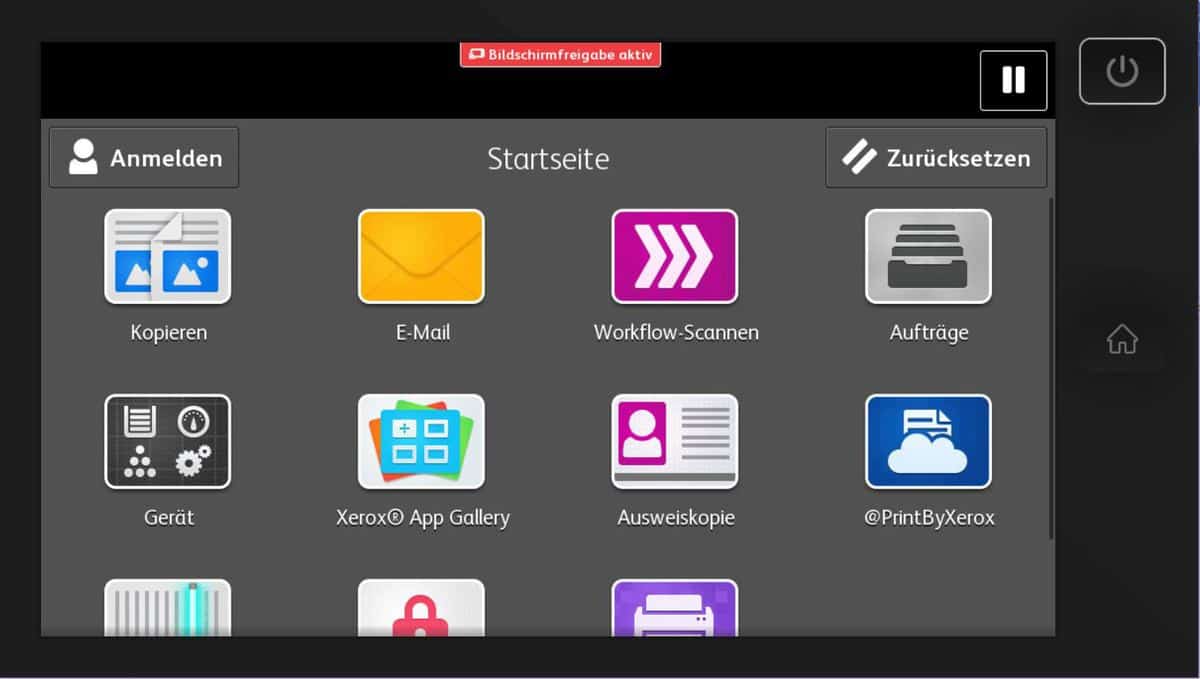
Xerox Remote Control Panel
In the stressful everyday working life of an IT employee or IT administrator, situations frequently arise in which they know a quick solution to an IT problem but cannot apply it directly due to the distance. This is also the case with multifunction printers. Nothing is more annoying than when the affected employee or customer cannot be helped because one does not have the same access to the technical devices as if one were directly on-site.
This is what the Xerox Remote Control Panel aims to achieve by giving administrators a way to access the machine's control panel via a web interface on their computer, as if they were physically present. This enables quick assistance, setups, and ultimately saves time. Additional access and lock settings further enhance the value of the feature.
The prerequisite for this is, of course, that the Xerox multifunction device is also connected to the network and has a valid IP address.
supported models
The Xerox Remote Control Panel is included in all AltaLink as well as the latest WorkCentre models. Below you will find a complete list of devices that include this feature:
- AltaLink
- C8030, C8035, C8045, C8055, C8070
- B8045, B8055. B8065, B8075, B8090
- WorkCentre
- 7970(i)
- 7830(i), 7835(i), 7845(i), 7855(i)
- 7220(i), 7225(i)
- 5945(i), 5955(i)
- 5865(i), 5875(i), 5890(i)
- 6655(i)
- 3655(i)
- ColorQube
- 8900
To be able to use the Xerox Remote Control Panel conveniently or at all on older models of the WorkCentre and ColorQube series, you should check whether the firmware version you are using is up to date.
Turning on the remote control
To access the machine's control panel, you must log in to the machine's web interface. To do this, enter the IP address of the multifunction device into your web browser.
Click the „Log in“ button in the top right corner of the web interface to log in as an administrator. The default login credentials are „admin“ as the username and „1111“ as the password.
The previously clicked „log in“ button now reads „admin – log out“. Below this button, click on the „Support“ menu item. This will display additional menu items in the main window, the last of which is called „Remote Control Panel“. There isn't much to see in this menu yet. Click the „Edit“ button on the right side to change this and activate the Xerox Remote Control Panel.

In the following view, you can enable the function and determine whether everyone or only administrators and diagnostic users should be able to access the machine's display via the web interface. After saving the settings, you can establish a connection to the display using the „Start remote session“ button. Another interesting feature is the ability to lock access on the display itself while remote control is active. This prevents accidental double operation.
Operate as if directly on the display
Done! You can now start the remote control via the web interface at any time and operate the multi-function device as if you were standing directly in front of it. To shorten the path to starting the remote display, it is recommended to bookmark the website with the start button in your browser.
In short
- Access web interface via IP address
- Log in as admin. Login „admin“, password „1111“
- „Support -> Remote Control Panel -> Edit -> Activate and Save -> Start Remote Session“