

What is the belt unit of a Xerox printer?

The Exposure unit A Xerox printer's drum plays a crucial role in the printing process. It is responsible for transferring the image or text onto the photoconductor material by sending laser beams to the surface. This process occurs in several steps:

  1. ChargeThe Exposure unit charges the photoreceptor surface negatively.
  2. ExposureLaser beams illuminate specific areas of the photoconductor, neutralizing the negative charge in these zones.
  3. Image transmissionToner powder is applied to the photoconductor. The toner adheres to the exposed areas due to electrostatic attraction, while it is repelled in the unexposed areas.
  4. FixationThe toner is subsequently transferred to the print medium and fixed by heat and pressure.

A well-functioning Exposure unit is of great importance for print quality for several reasons:

  • Image qualityPrecise exposure ensures sharp, clear prints without blurring or streaking. This is particularly important for professional printing applications where visual impact is crucial.
  • Color accuracyIn color printing, flawless exposure enables colors to be reproduced accurately, which is essential for marketing materials and other professional documents.
  • Operational optimizationA Exposure unit, which works efficiently, reduces the probability of disturbances and failures, leading to increased productivity. This is especially important in high-volume environments.

In summary, the Exposure unit A central element in the printing process is its flawless functionality, which directly influences the quality and efficiency of the printing results.

When does the Exposure unit be replaced on a Xerox printer?

Trommelkit CMY Xerox VersaLink C415 - 013R00701

Image: C320/C325, C410/C415 Exposure unit Color

What is the image drum of a Xerox printer?

An imaging drum, also referred to as a drum or photoconductor drum, is a central component in printers, particularly in laser printers. It plays a crucial role in the printing process because it generates the image or text to be printed. The drum is electrostatically charged and transfers the toner powder onto the paper.

Differences between imaging drums in Xerox printers and conventional printers:

  1. Technology
  • Xerox printing systems frequently use special technologies that optimize image quality and print speed. Xerox's patented technologies, such as EA toner technology, enable more precise print results and a broader color gamut.
  1. Design
  • On some Xerox printers, the imaging drum is an integrated component of the toner cartridge. This simplifies maintenance and replacement, as users can change both the drum and the toner at the same time. On many conventional printers, these components are often separate, which can lead to a greater number of potential sources of error.
  1. Lifespan and Efficiency
  • Imaging drums in Xerox printers are often more durable and can be used for longer periods in high-volume printing environments, which lowers the overall cost per page. Traditional printers may have shorter drum life cycles, resulting in a more frequent need for replacement.
  1. Compatibility and Accessories:
  • Xerox offers a variety of specific accessories for its systems, including imaging drums that are tailored to the respective models. With conventional printers, the imaging drums may sometimes not be fully compatible with other brands.

Overall, image drums differ depending on the printer system in terms of technology, design, and performance. For professional applications, the use of Xerox printing systems is recommended due to their high quality and efficiency.

113R00780 - Drum Xerox VersaLink C7020/7025/7030

Image: Drum unit for Xerox VersaLink C7020 / C7025 / C7030

What is a toner collection container on a Xerox printer?

A toner collection container or waste toner container is an important component of printing systems, especially in laser printers. It serves to collect unused toner that is generated during the printing process. The toner collection container prevents excess toner from remaining in the printer, which could lead to clogs and other mechanical problems.

Image: Toner collection box, xerox.com

Regarding toner waste containers, there are several differences between Xerox printing systems and those of other manufacturers:

  1. Design and CapacityXerox toner waste containers are often specifically tailored to the respective printer models. They can offer a higher capacity and optimized design to maximize the efficiency of the printing process.
  2. Compatibility: While many manufacturers offer generic or compatible toner collection containers, these may not be 100 % compatible with specific Xerox printing systems. It is important to choose a collection container designed specifically for your printer to ensure optimal performance and quality.
  3. Disposal optionsSome manufacturers, including Xerox, offer recycling programs for their toner collection containers, which supports environmentally friendly disposal. This may vary with third-party options.

Overall, it is advisable to use the manufacturer-recommended toner collection container to ensure the best possible print quality and longevity of the printing system.

Image: Waste toner container Xerox AltaLink B/C 8170 and 8270

What is Xerox Smart Start?

Xerox Smart Start is a program specifically designed to make it easier to get started with using Xerox print systems. This program provides comprehensive support for companies wanting to implement new Xerox print solutions. It detects the printers in the system and helps with the installation of the appropriate drivers.

Advantages:

  1. Quick setupThe program enables a prompt and efficient installation of the Xerox systems.
  2. Training and DevelopmentUsers receive targeted training in order to make optimal use of the systems' functionalities and optimize operations.
  3. Technical SupportTechnical support is available throughout the entire implementation phase to assist with any questions and challenges.
  4. AdaptabilityXerox Smart Start can be customized to the specific needs and requirements of the business to ensure maximum efficiency.
  5. Resource utilizationThe program includes access to comprehensive resources and tools that enhance the user experience.

What makes Xerox toner special?

  1. Quality and PerformanceXerox toner is designed to work optimally with Xerox printing systems. The toner formulation ensures consistent print results and high durability, while other toners may not offer the same quality, which can lead to lower color accuracy and faster wear and tear.
  2. CompatibilityXerox toner is specifically designed for use in certain Xerox printer models. In contrast, third-party toners carry the risk that they may not offer the same performance or color stability, which can lead to printing issues.
  3. FunctionalityXerox printing systems are often equipped with innovative technologies specifically designed to work with Xerox toner. These systems can efficiently utilize toner and enable features like automatic Duplex printing or better support toner status detection. With third-party systems, such functions may be limited.
  4. ProfitabilityAlthough Xerox toner may be somewhat more expensive to purchase than third-party products, they generally offer a longer lifespan and lower failure rates, which can reduce overall costs over time. Investing in original Xerox toner can ultimately lead to higher efficiency and associated cost savings.

Overall, the use of Xerox toners in Xerox printing systems guarantees optimum print quality, improved reliability, and a longer lifespan for the print results.

Art. No.: 106R03620

Image: Standard capacity black toner for Xerox Phaser 3330 and WorkCentre 3335/3345

Fuser unit

Is a Xerox printer worth it for me or my business?

A Xerox printer is worth it for an individual or company when certain criteria aimed at efficiency and cost-awareness are met. Here are some key factors:

  1. Print volumeAs soon as the monthly print volume regularly exceeds 500 pages, investing in a Xerox printer can be worthwhile. These systems are designed for high print volumes and offer cost advantages through lower costs per page compared to conventional office printers.
  2. Print qualityWhen the highest standards are set for print quality, Xerox printing systems are an excellent choice. They guarantee precise color reproduction and sharp text, which is particularly important for companies in marketing, design, or customer communication.
  3. VersatilityCompanies that use a variety of print media or want to create different formats such as brochures, presentations, or marketing materials benefit from the advanced features of Xerox systems. These often also offer solutions for scanning, copying, and faxing in a single device.
  4. Accessories and expansionsThe ability to integrate Xerox accessories and supplies allows the printing system to be adapted to specific needs. This includes the use of used or refurbished accessories, which can further reduce costs.
  5. Growth prospectsFor emerging companies anticipating growth, investing in a reliable printer like a Xerox printing system makes sense. These systems support scalability and can be adapted to increasing demands.

Overall, choosing a Xerox printer is particularly advantageous when printing efficiency, quality, versatility, and cost-effectiveness are the focus.

Image: Xerox VersaLink B620V_DN

What are Xerox printers?

What are Xerox printing systems?

Xerox printing systems are specialized printing solutions developed and manufactured by Xerox. These systems are characterized by their high productivity, reliability, and quality, and are designed to meet the demands of businesses and organizations with large printing volumes and diverse printing requirements.

Difference from normal printers

Unlike conventional printers, which are typically designed for home use or small offices, Xerox printing systems offer advanced functionality and better performance. They are suitable for continuous operation and can often combine multiple functions, such as printing, copying, scanning, and faxing. In addition, they feature higher printing speeds, better print quality, and are equipped with robust security features to protect sensitive information. Furthermore, they are scalable and can be adapted to the specific needs of large printing environments.

Applications of Xerox Printers

Xerox printing systems are used in various fields:

  1. CompanyIn large offices or companies with high print volumes, they offer the necessary efficiency and quality.
  2. Printing marketing materialsAdvertising agencies and marketing departments use them to create high-quality brochures, flyers, and other marketing materials.
  3. PublishersNewspaper publishers and printing companies often use them to produce newspapers and magazines cost-effectively.
  4. Educational institutionsSchools and universities use Xerox systems to create teaching materials and administrative documents.
  5. HealthcareHealthcare facilities need printing solutions that ensure both the security and quality of patient data.

Thanks to their advanced technology, these systems ensure not only high print quality, but also efficient processing of large print runs. In addition, they offer comprehensive customization options that allow companies to optimally integrate their specific requirements and workflows.

How does a Xerox printer work?

Xerox Remote Control Panel

In the stressful everyday working life of an IT employee or IT administrator, situations frequently arise in which they know a quick solution to an IT problem but cannot apply it directly due to the distance. This is also the case with multifunction printers. Nothing is more annoying than when the affected employee or customer cannot be helped because one does not have the same access to the technical devices as if one were directly on-site.

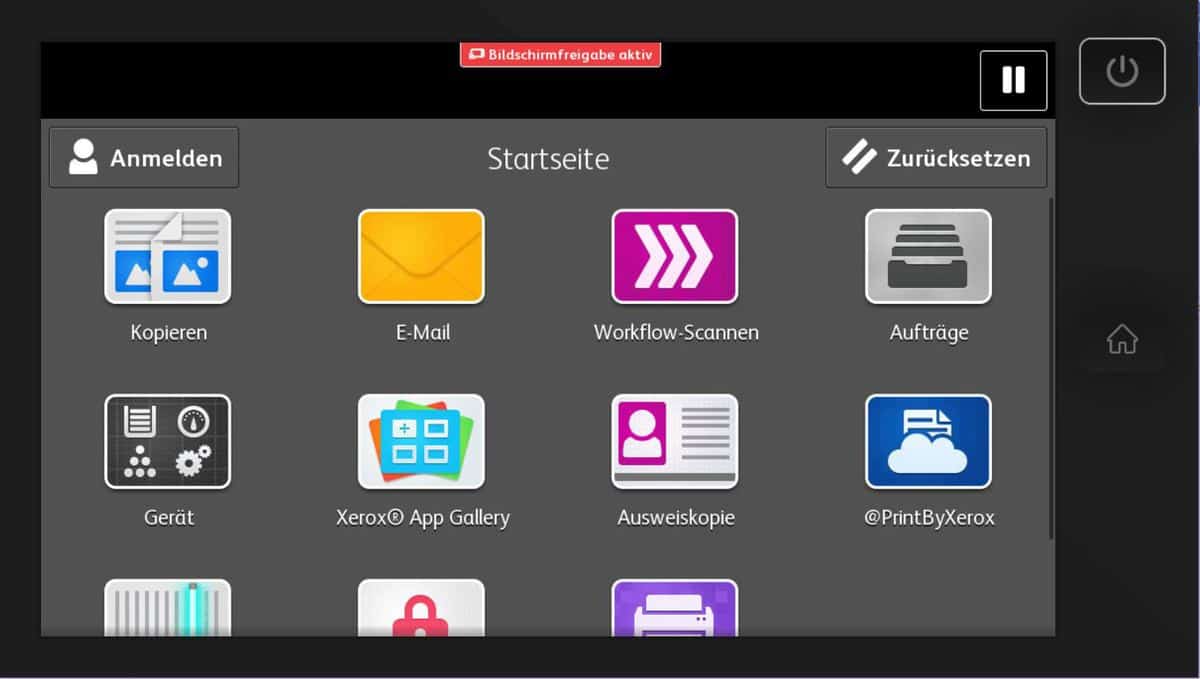
This is what the Xerox Remote Control Panel aims to achieve by giving administrators a way to access the machine's control panel via a web interface on their computer, as if they were physically present. This enables quick assistance, setups, and ultimately saves time. Additional access and lock settings further enhance the value of the feature.

The prerequisite for this is, of course, that the Xerox multifunction device is also connected to the network and has a valid IP address.

supported models

The Xerox Remote Control Panel is included in all AltaLink as well as the latest WorkCentre models. Below you will find a complete list of devices that include this feature:

  • AltaLink
    • C8030, C8035, C8045, C8055, C8070
    • B8045, B8055. B8065, B8075, B8090
  • WorkCentre
    • 7970(i)
    • 7830(i), 7835(i), 7845(i), 7855(i)
    • 7220(i), 7225(i)
    • 5945(i), 5955(i)
    • 5865(i), 5875(i), 5890(i)
    • 6655(i)
    • 3655(i)
  • ColorQube
    • 8900

To be able to use the Xerox Remote Control Panel conveniently or at all on older models of the WorkCentre and ColorQube series, you should check whether the firmware version you are using is up to date.

Turning on the remote control

To access the machine's control panel, you must log in to the machine's web interface. To do this, enter the IP address of the multifunction device into your web browser.

Click the „Log in“ button in the top right corner of the web interface to log in as an administrator. The default login credentials are „admin“ as the username and „1111“ as the password.

The previously clicked „log in“ button now reads „admin – log out“. Below this button, click on the „Support“ menu item. This will display additional menu items in the main window, the last of which is called „Remote Control Panel“. There isn't much to see in this menu yet. Click the „Edit“ button on the right side to change this and activate the Xerox Remote Control Panel.

In the following view, you can enable the function and determine whether everyone or only administrators and diagnostic users should be able to access the machine's display via the web interface. After saving the settings, you can establish a connection to the display using the „Start remote session“ button. Another interesting feature is the ability to lock access on the display itself while remote control is active. This prevents accidental double operation.

Operate as if directly on the display

Done! You can now start the remote control via the web interface at any time and operate the multi-function device as if you were standing directly in front of it. To shorten the path to starting the remote display, it is recommended to bookmark the website with the start button in your browser.

In short

  • Access web interface via IP address
  • Log in as admin. Login „admin“, password „1111“
  • „Support -> Remote Control Panel -> Edit -> Activate and Save -> Start Remote Session“